Operational Guide for Sport Experts & Referees
This document provides a complete operational workflow for Sport Experts and Referees using the ISU Competition System during ISU World Cup and Championship events. The guide follows the exact chronological order of tasks officials must perform from pre-event setup through start list signing and post-meeting updates.
Chronological Overview
Below is the high-level sequence that every Sport Expert or Referee must follow:
- Open and manage entry registries
- Configure ranking list settings (groups, score columns, ordering)
- Fetch external data (WC Points, WC Rank, Seasonal Best, Seeding Times)
- Order entries into ranking lists
- Process withdrawals & substitutions
- Publish ranking lists to Team Leaders
- Generate start lists
- Review, adjust, save & sign start lists
- Re-open registries after Team Leaders Meeting
- Keep team events open until 1 hour before competition
Using Ranking Lists
Ranking Lists determine whether team leaders can modify entries. Screenshot examples show the Ranking Lists overview and Edit Ranking List screens.
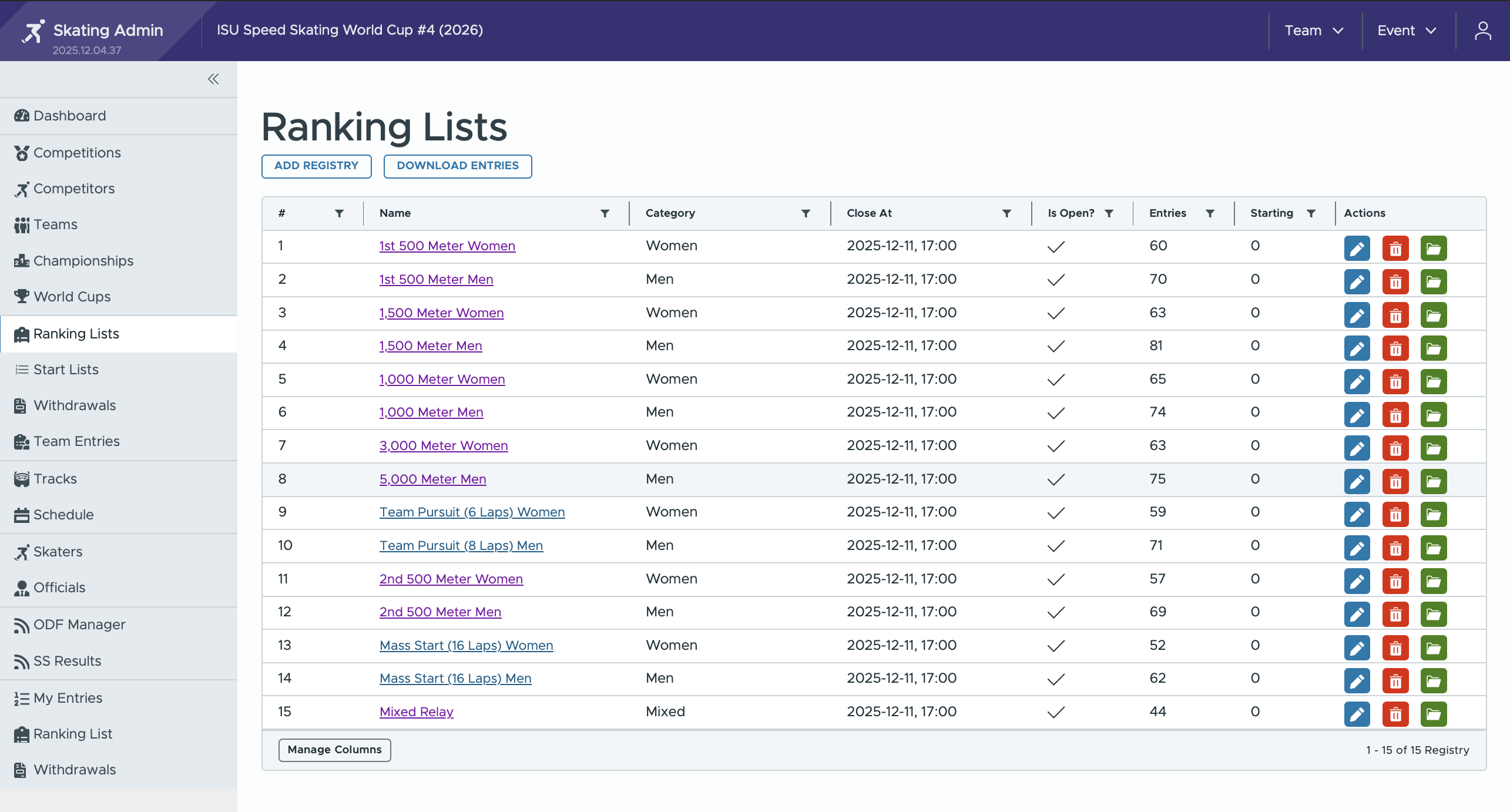
Opening Ranking Lists
Ranking Lists must be opened prior to the competition so team leaders can:
- Change team member order (if enabled)
- Accept their entries before the official draw deadlines (if required)
- Make a pre-draw withdrawal and optionally let their substitute skate.
Ranking Lists remain open until the moment the sport expert needs to start draw preparation, typically:
- 17:00 the day before competition starts (after the Team Leaders Meeting)
The settings Open At and Close At determine together if a ranking list is open or closed for modification by teams. Normally you only need to control the Close At property, making sure that any ranking list that is converted to a draw is blocked from further changes except official withdrawals.
Allowing Team Order Changes
In the Edit Ranking List screen, you may enable:
- Enable team ordering (Checkmark)
Useful for team pursuit, team sprint, or events where teams define their internal participation order.
Some events (for example early-season World Cups) also allow team leaders to influence placement into A/B divisions; activate this option when applicable.
Closing Registries Before Draw
Before sorting and generating the draw:
- Ensure the registry is closed to prevent last-minute modifications.
- After the Team Leaders Meeting, re-open only the Ranking List for which no draw is performed, so team leaders may perform pre-withdrawal changes.
Configuring the Ranking List
The Ranking List acts as the foundation for seeding, grouping, and start list creation.
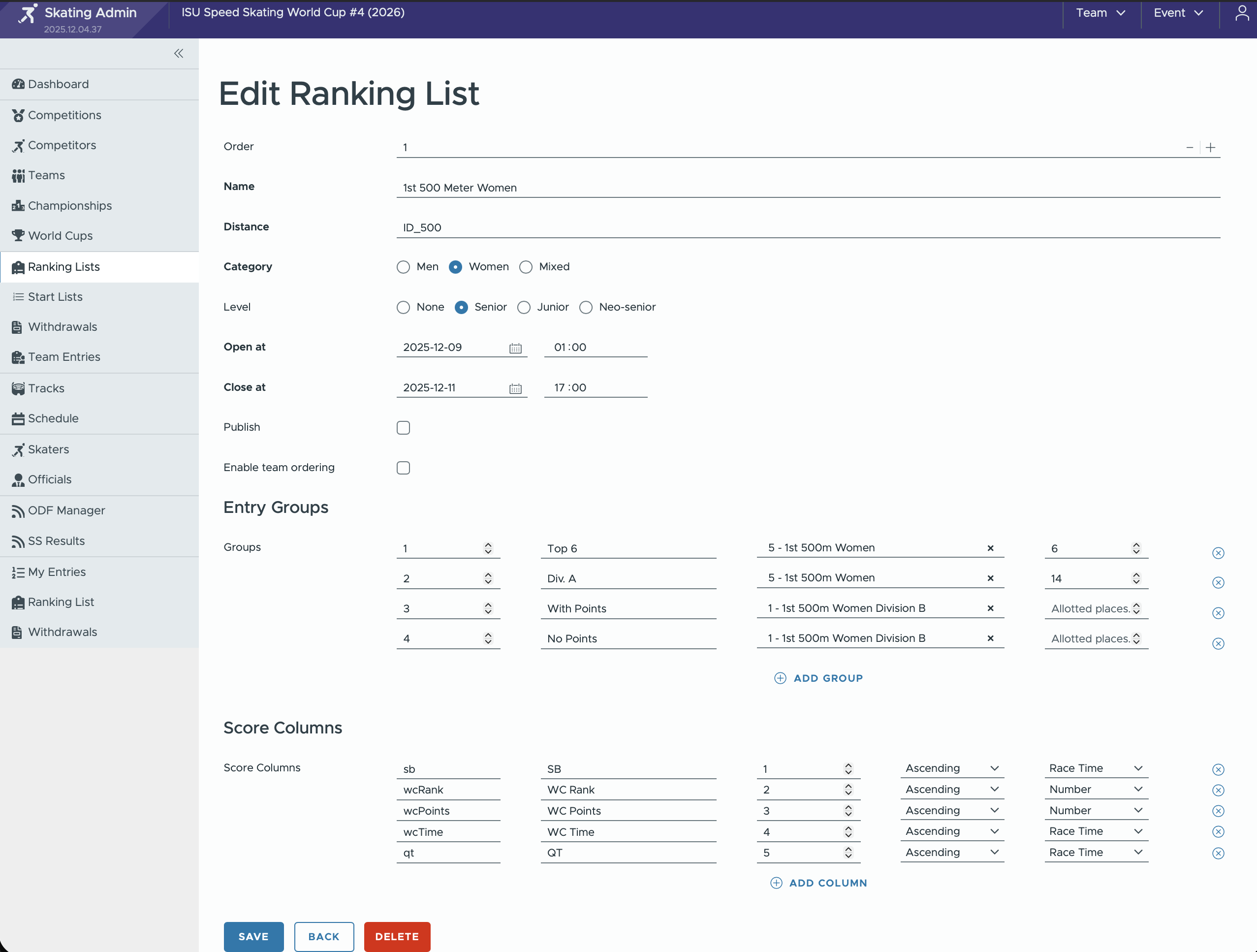
Entry Groups
Entry groups define logical categories inside a ranking list. Common groups include:
- Top 6 (athletes always drawn separately in World Cup competitions)
- Div A
- With Points (Division B with WC points)
- No Points
Custom groups can be added or modified to match event rules.
Groups determine:
- Which athletes appear in which part of the draw
- Which groups are imported into start lists
Adding Groups
On the Edit Ranking List page:
- Navigate to Entry Groups
- Press Add Group
- Assign:
- Group label
- Source competition or series (optional)
- Allowed number of athletes (optional)
Score Columns
Score Columns define how athletes are sorted. Common columns:
- SB – Seasonal Best
- WC Rank
- WC Points
- WC Time
- QT – Qualification Time
Columns can sort by:
- Number (ascending/descending)
- Race time (ascending/descending)
Adding/Editing Columns
- Go to Score Columns
- Press Add Column
- Choose:
- Column key
- Display label
- Sort priority
- Sort direction
Columns may also be used to track: * Promotions to Division A * Degradations to Division B * One option is to use 1 for promotions and -1 for degradations
Importing External Data
Sport Experts import all performance-related data before ranking lists are finalized.
Available data sources
- World Cup Points
- World Cup Ranking
- Seasonal Best times
- Qualification Times (seeding)
- WC Time (fastest WC performance)
How to import
- Open the ranking list
- Select Fetch Data
- Choose:
- Dataset (WC points, SB, QT, etc.)
- Distance
- Target column
The system fills the selected column for all registered athletes.
This step is mandatory before sorting or drawing.
Sorting & Ordering Ranking Lists
Sorting ranking lists determines the athlete order for the official draw.
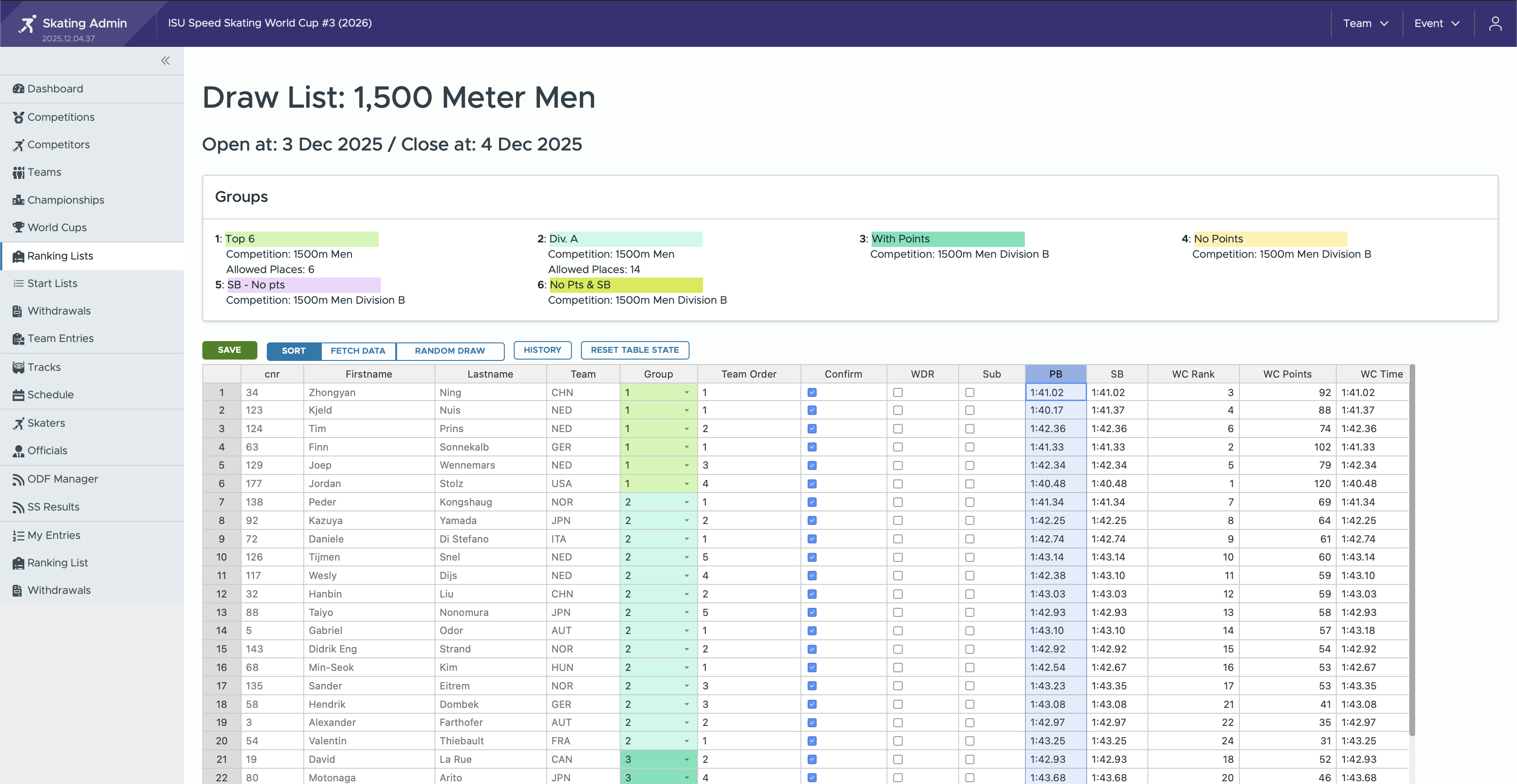
Multi-column Sorting
Sport Experts can select multiple columns using:
- Cmd on macOS
- Ctrl on Windows
Typical World Cup sorting order:
- WC Rank
- WC Time
- Seasonal Best
The system immediately reorders based on the selected criteria.
Random Draw Management
You can do a random draw for skaters in a group using the random draw button in the Ranking List. This will open the random draw window and allows you to let the computer randomly draw skaters to new positions in the ranking list. After the draw is finished you press save. This saves the changes to the ranking list. To persist the ranking list you also have to press save on the ranking list.
- Don't forget to
savetwo times when doing a random draw. One time to apply the draw to the ranking list and once for persisting the ranking list.
Manual Add / Remove Athletes (Advanced)
Right-click actions on a row allow:
- Insert Above / Insert Below
- Delete
Used for last-minute replacements or corrections.
Save Frequently
Ranking list changes are only stored after pressing SAVE.
Don't work with more than one user/computer in the same ranking list. If both users press save, the last save received by the server is the action that is persisted.
Failing to save results in data loss.
Handling Withdrawals & Substitutions
Withdrawals come into the Competition System through: * The Team Leaders App, where TLs submit: * Withdrawals * Substitutions (sub-in)
These appear for Sport Experts and Referees under Withdrawals.
Processing Withdrawals
- Open Withdrawals in the admin system
- Accept requests
- When accepted:
- The athlete remains in the ranking list
- The WDR checkbox is automatically marked
- The withdrawn athlete must be manually set in the correct ranking position as with the substitute athlete.
Processing Substitutions
- Substitutions clear the sub indicator
- They show which athlete is replacing the withdrawn competitor
Paper Trail
Each withdrawal action generates an email to the Referee/Sport Expert. Use these emails to verify that all withdrawals and substitutions were processed correctly.
Publishing Ranking Lists
Once ranking lists are complete:
- Open Edit Ranking List
- Check Publish
- Press SAVE
Team Leaders will now see the list in their Competition App. Make sure data is fully correct—published lists are considered official.
Creating Start Lists
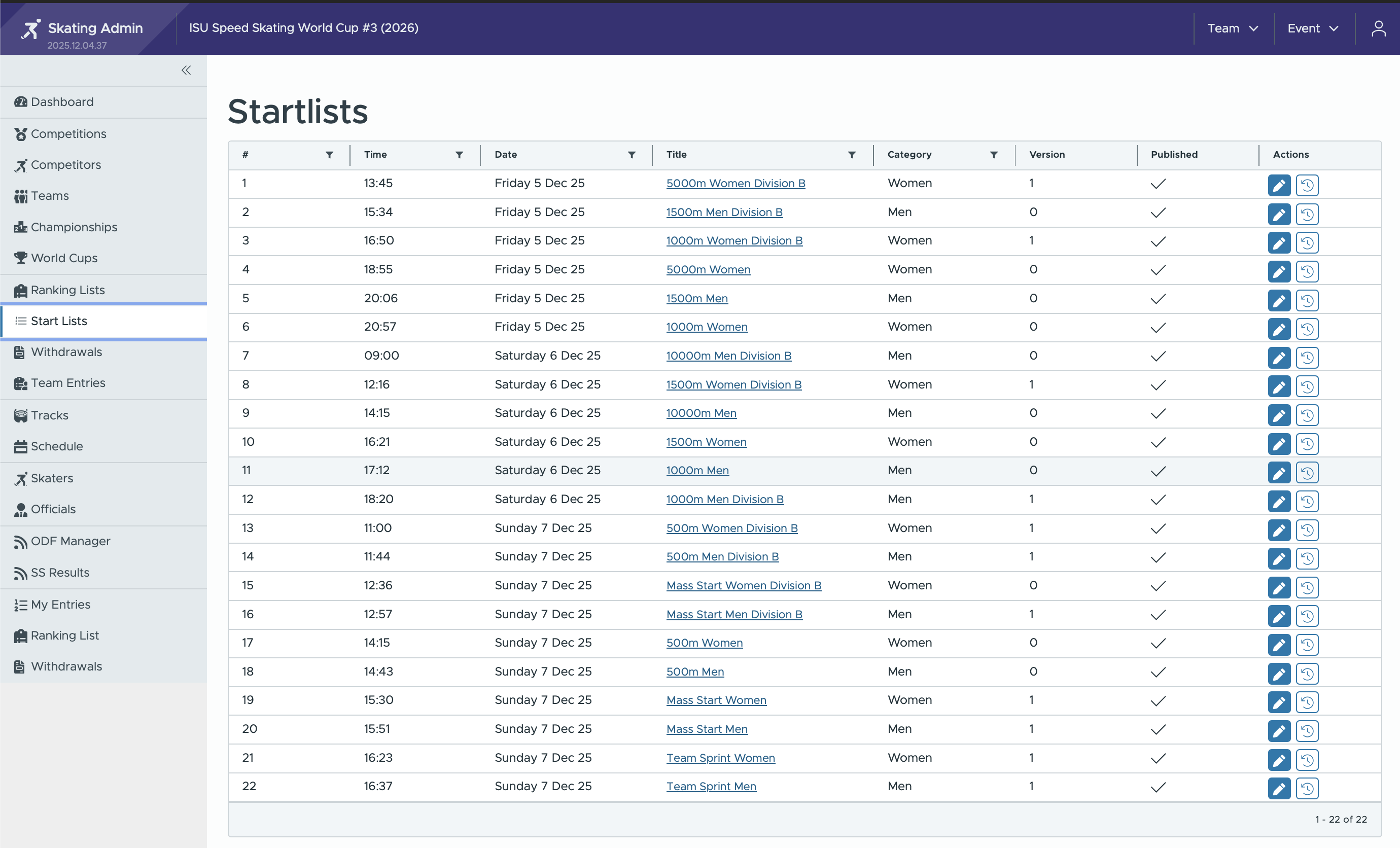
After ranking lists are finalized, start lists can be created.
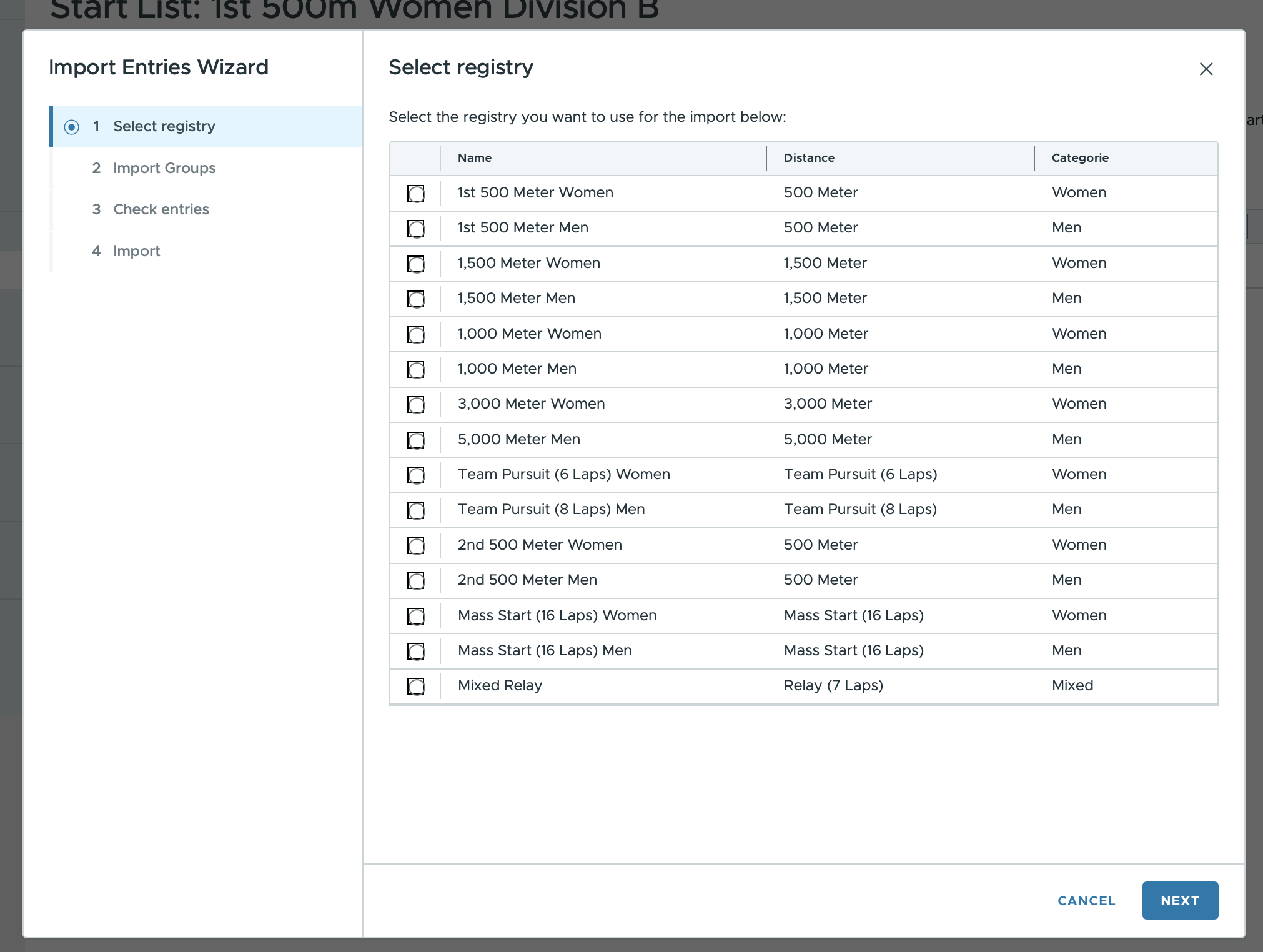
Importing Entries
- Go to Start Lists
- Select the distance for which you want to manage the start list
- In the Start List editor Press Import Entries
- Select the ranking list from which to import
- The system asks which Groups to import (Top 6, Div A, etc.)
- A preview page shows which athletes will be included.
- Press Next to confirm the import.
Editing Start Lists
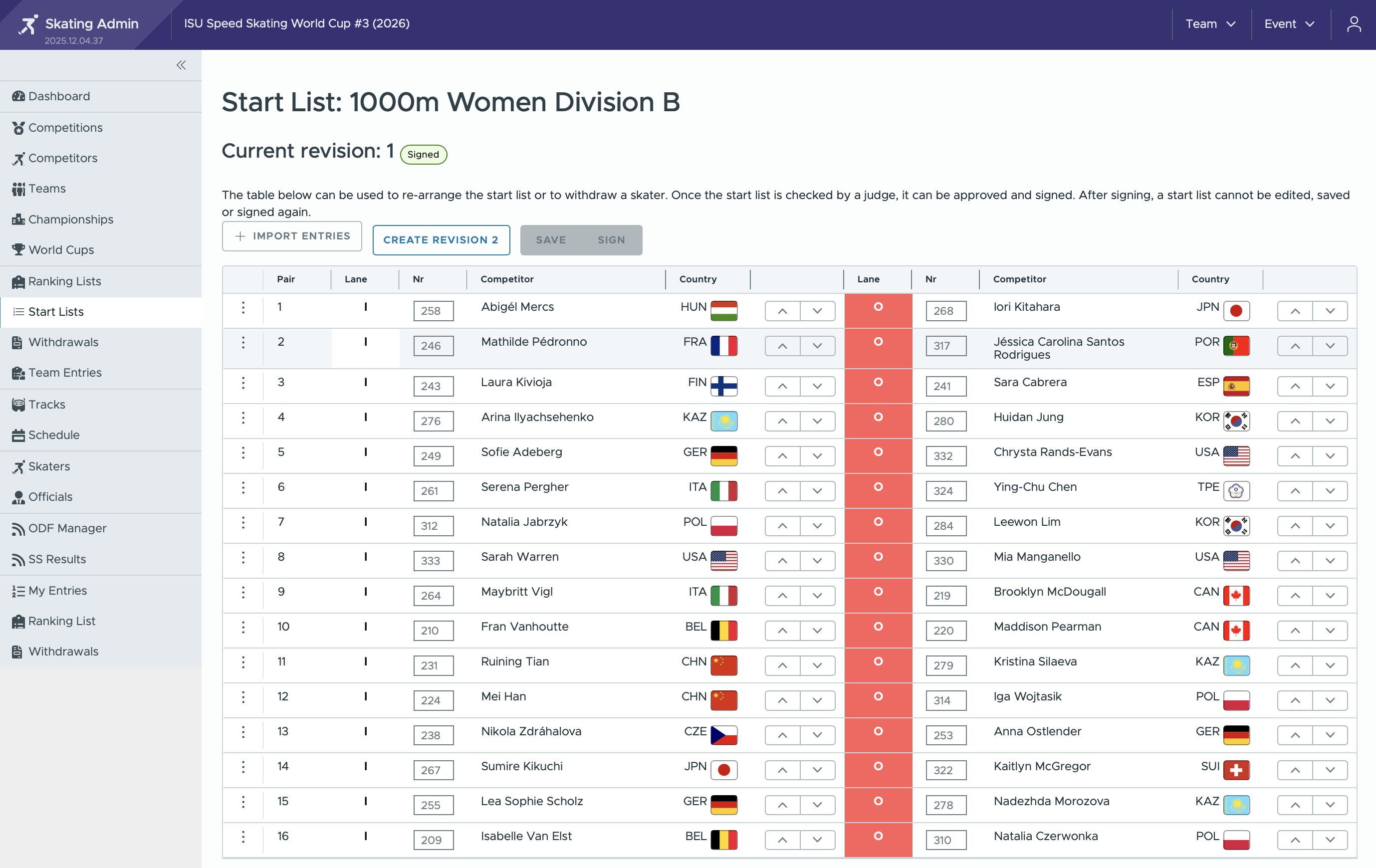
In the editor, you may:
- Re-order athletes
- Edit lanes
- Apply pairing or quartets logic
- Remove/Withdraw athletes
- Make last adjustments
Save & Sign
When finalized: 1. SAVE 2. SIGN the start list
After signing:
- The list becomes locked
- A PDF is generated for the referee to sign offline
- The start list is automatically published online
- You can edit the start list again, by starting a revision
Post-Team Leader Meeting Updates
Re-opening Ranking List
After the Team Leaders Meeting:
- Re-open Ranking List only for distances without completed draws
- This allows team leaders to submit pre-draw withdrawals
Team Events
Team Pursuit / Team Sprint Ranking List must remain open until 1 hour before race start so team leaders can update:
- Team composition
- Order of riders
Summary Checklist
Pre-Event
- Open all Ranking List
- Enable team ordering options where required
- Verify correct distances and groups
Ranking Preparation
- Fetch WC Points, WC Rank, SB, QT
- Add required groups
- Add score columns
- Sort ranking lists
- Process withdrawals/subs
- Publish ranking lists
Start Lists
- Import entries per group
- Review start list
- Save & sign
- Confirm PDF generation
After TL Meeting
- Re-open Ranking List where no draw was done
- Keep team event Ranking List open until 1 hour before start